Software Review: Celoxis
Read our review guidelines.
General information
Name: Celoxis
Vendor: Celoxis Technologies
Hosting options: There is a web hosted version and a version you can host yourself
Cost and plans: Web-hosted version is $14.95 per user per month. An on-premise licence is $299 plus $180 per user (one-off fee). Free 30-day trial.
Languages: English
Currency: Feature to add your own currency symbol
Basic features: building projects
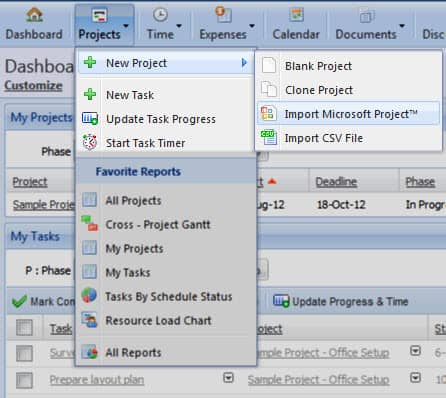
To create a new project, select New Project from the Projects tab, then Blank Project (or import, if you are importing from MS Project or a .csv file). The project information window opens and asks you to fill in basic project information. The deadline field is required, which is strange, as typically you plan first, and then work out when the work is going to finish. You can change this later if you need to.
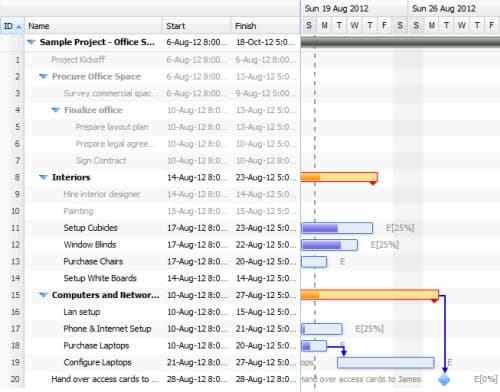
You simply click Add from the Gantt chart view to add tasks. Edit the name of the task that appears on the Gantt chart, as by default it will appear as ‘New Task’. New tasks are always added at the bottom from this view. You can move them up (or down) but if you had lots of tasks and had forgotten something, moving your new task up one line at a time would be a drag.
It is easier to add tasks from the Task Worksheet. This gives you lots more options, such as adding tasks in the right place in the list, adding child tasks, adding predecessors, constraints and % complete. This is a much more comprehensive way to build your Gantt chart. You can also add milestones from here, by making the duration of a task 0 days.
You need to create the users before you can add them to a project task. You can create generic or “non-human” as they call it, resources without licencing (i.e. paying for) them, but they won’t be able to log in. You have to select a role for the user and the list to pick from works a bit backwards. Normally on websites like this the list of choices appears on the left and you move your choice into the right-hand box. This works the other way round, but it still works.
Other features: reports and more
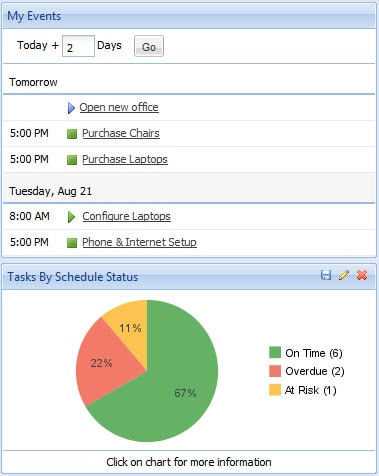
There is a stack of built-in reports including some unusual ones like a cross-project Gantt chart which shows you the overall summary of all in progress projects which would be great for programme managers. There are time and expense reports too, and also those that link to the workflows, showing you what you have requested from other people and what is in your queue to do.
Celoxis will also send out email reminders to team members. There is a very granular notification menu where individuals can choose exactly what they want to receive updates about. The dashboard is also helpful and shows you all the open projects and some other useful information.
The big downside I found was the help feature. It was rubbish. It wouldn’t help me work out how to add a milestone. Even searching for ‘Resource’ brought up no results. The Gantt chart view has options for add a resource and replace a resource, so the fact this word didn’t come up shows that they need to do more work on the help. Later I found out that while the search didn’t work, if you click Tips you open up the full help menu and you can navigate around from there.
Team members can complete timesheets, but only for tasks on the plan plus meetings, sick leave and vacation. It also has a task timer. You can add day rates for users. It also looks like people can upload and bill expenses, but I couldn’t work out how (and the help was no help).
What about collaboration features?
There is a project discussion forum feature. You can upload documents, but being in a project doesn’t default you to upload documents to that project. You still have to choose which project you want to attach the document to – this is open to human error and I can see project team members attaching things to the wrong project. You have the option to share the document with the client or not, and you can upload multiple files at a time.
From the website it doesn’t look as if there are any options for smartphone or table apps, but the functionality is such that it really requires you to be at a computer with a mouse to use it.
In summary…
This is not going to be easy software to pick up, and it leans towards the more professional end of the market. It’s not something you would give to a project team member and expect them to get on with it, as there is too much to learn. There are multiple screens, various ways to enter data, and workflows to configure.
That’s not to say that advanced functionality is a bad thing – the sophistication of the software is reflected in the price. With the workflow, timesheets and expense tracking this is a feature-rich application, but you’ll need to spend the time working with it to get the best out of it and your money’s worth.
See all project management software reviews.
Right to reply
In July 2013 Celoxis got in touch to provide this comment.
pm4girls: New tasks are always added at the bottom from this view.
Celoxis Response: Celoxis allows you to add a new Task, subtask, predecessor, successor, milestones etc. below any selected task. If no task is selected, then it will place it at the bottom. In addition, you can also select one or more tasks and drag and drop them at the appropriate node. Celoxis lets you configure columns you wish to view on the grid portion of the Interactive Gantt. This facilitates easy inline editing.pm4girls: The big downside I found was the help feature. It was rubbish.
Celoxis Response: Celoxis continually improves documentation based on customer inputs. We strive to ensure that questions asked in support tickets are fed back as documentation improvements. We believe that the searches you mention do fetch relevant results.pm4girls: It also looks like people can upload and bill expenses, but I couldn’t work out how.
Celoxis Response: Covered in the documentation.pm4girls: You can upload documents, but being in a project doesn’t default you to upload documents to that project.
Celoxis Response: You can add documents directly to a project or a task by clicking on the action selector next to that object. If you wish to upload from the top main menu on Documents, it will provide easy references to the recent projects you were working on.pm4girls: From the website it doesn’t look as if there are any options for smartphone or table apps, but the functionality is such that it really requires you to be at a computer with a mouse to use it.
Celoxis Response: Celoxis is available on Iphone, Blackberry, Android, Nokia. You need not download anything. Just access it using a browser on any phone or mobile device.Celoxis Response: In fact, we have recently launched our new Version 6.0. Celoxis is now available in Chinese (simplified), French, German, Spanish, Portugese. V6.0 has many more exciting features like an improved user interface, new time entry, ability to set baseline, adding custom data on Users/Clients.
